


Elements & Tags
Overview
Web pages are built using building blocks called HTML Elements. Think of elements as lego pieces (a paragraph lego piece, an image lego piece, a button lego piece).
To create an element, we use Tags. Tags are words wrapped in angle brackets, like `<button>`. They tell the browser where an element starts and where it ends.
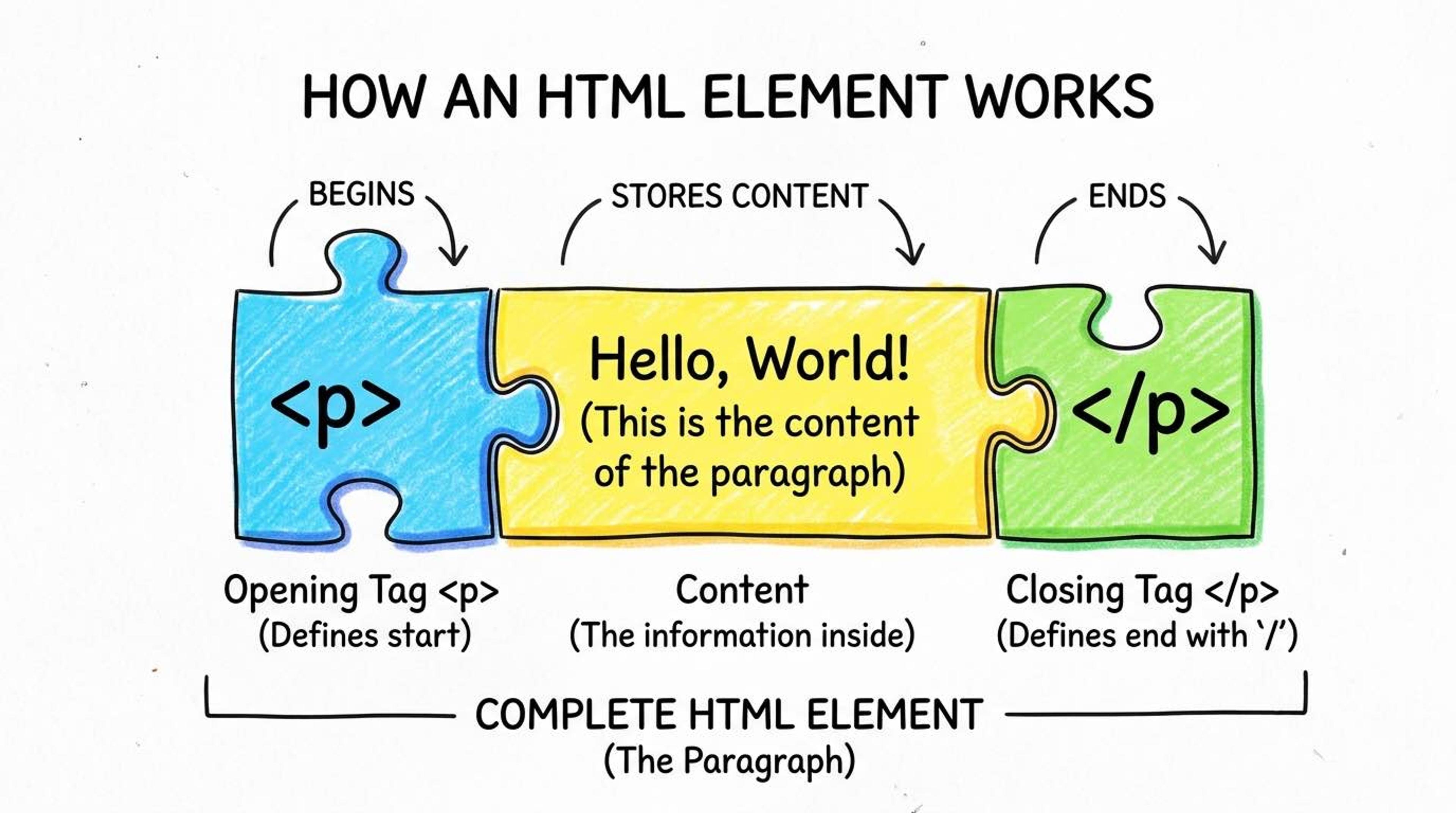
1. Container Elements (Pairs)
Most elements act like containers. They wrap around text. They MUST have an Opening Tag (like `<h1>`) and a Closing Tag (like `</h1>`). Notice the forward slash `/` in the closing tag!
<h1>This is a heading</h1>
<p>This is a paragraph.</p>
2. Void Elements (Self-Closing)
Some elements don't contain any text inside them. For example, an image is just an image. A line break is just an empty space. Because they have nothing inside, they do NOT have a closing tag. We call these 'Void Elements' or 'Self-closing tags'.
<!-- Image element (No closing tag needed) -->
<img src="photo.jpg" />

<!-- Line break (creates a new line) -->
<br />
Syntax
You can put elements inside other elements (called 'nesting'). Just make sure to close the inner elements before you close the outer elements. Think of it like Matryoshka dolls (Russian nesting dolls).
<!-- ✅ Correct: The strong tag opens and closes inside the p tag -->
<p>I am <strong>very</strong> happy!</p>

<!-- ❌ Wrong: The p tag closes before the strong tag -->
<p>I am <strong>very</p> happy!</strong>
Common Pitfalls
- Forgetting the forward slash `/` in a closing tag is the most common beginner mistake.
- Interview tip: If asked to name void elements, say `<img>`, `<input>`, `<br>`, and `<hr>`.
Real-World Example
A product card mixing both container and void elements:
<div class="product">
  <!-- Void Element -->
  <img src="shoes.jpg" alt="Running Shoes" />

  <!-- Container Elements -->
  <h2>Nike Air Max</h2>
  <p>Comfortable running shoes.</p>

  <!-- Void Element for a horizontal line -->
  <hr />
  <button>Buy Now</button>
</div>